Resume Application
There are ample chances that end-users (existent customers or prospects) would create an application, provide a few details and quit the application without completing the process. In some cases, you expect the app to save the so far provided details, so that you can continue the process later. In other cases, for instance, if the browser crashes or the session times out, the user would want the app to save the application automatically.
In both the cases, the Infinity Origination app provides an option to resume the application from where the user left.
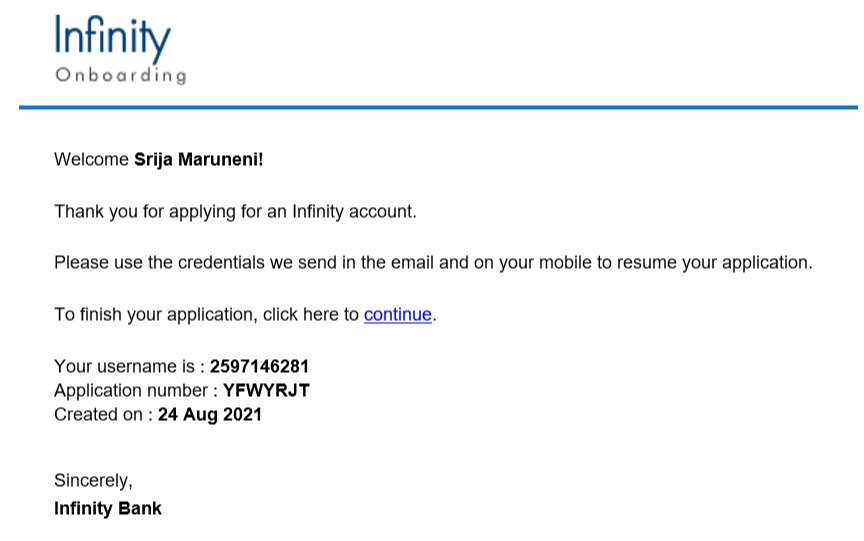
If you are a prospect user, you will receive the following email with an application resume link, username, and application number. A temporary password is sent to the registered phone number.
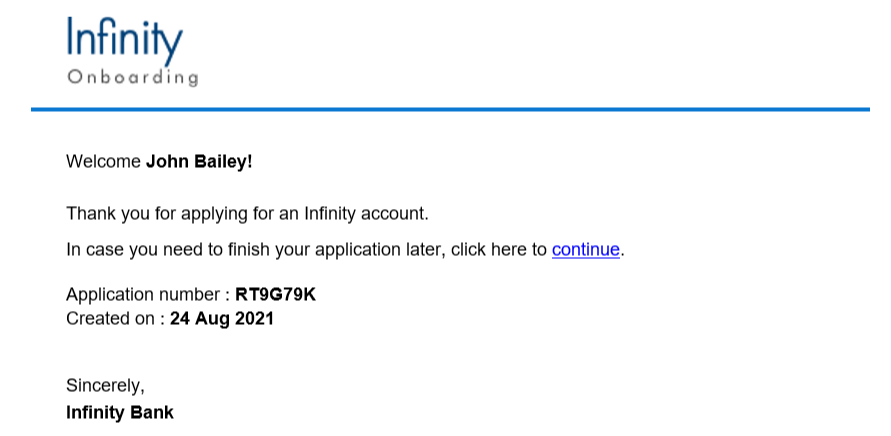
If you are existing user, you will receive the following email with an application resume link and application number. You can login to the application by using your login credentials.
If you are an existing customer of the bank, follow these steps.
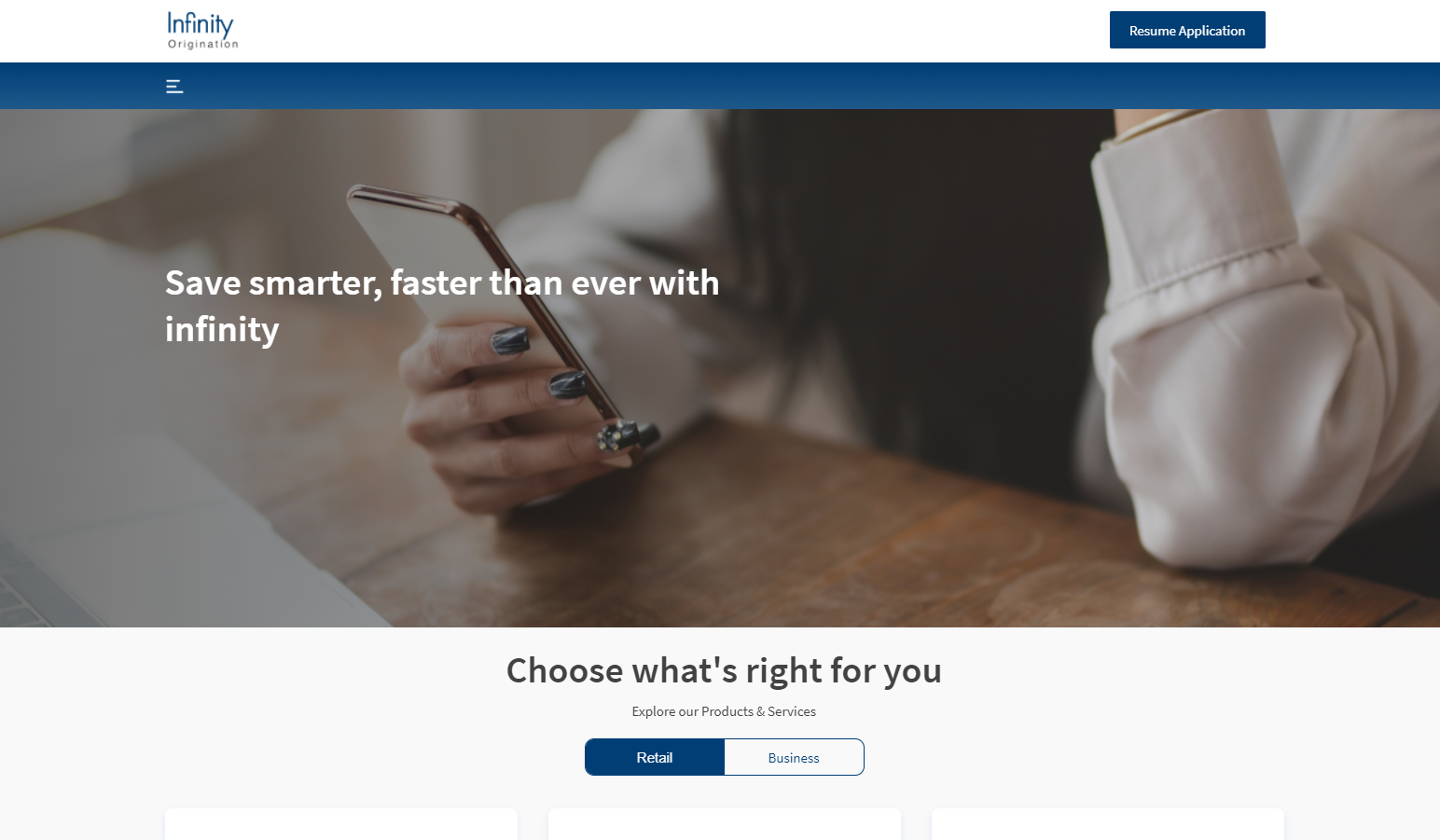
- From the Infinity Origination dashboard, on the upper-right corner, click Resume Application.

The app opens the page where you can choose to login to the app, if you are an existing customer. - Select the eSign Agreement check box and click Sign in to Continue.

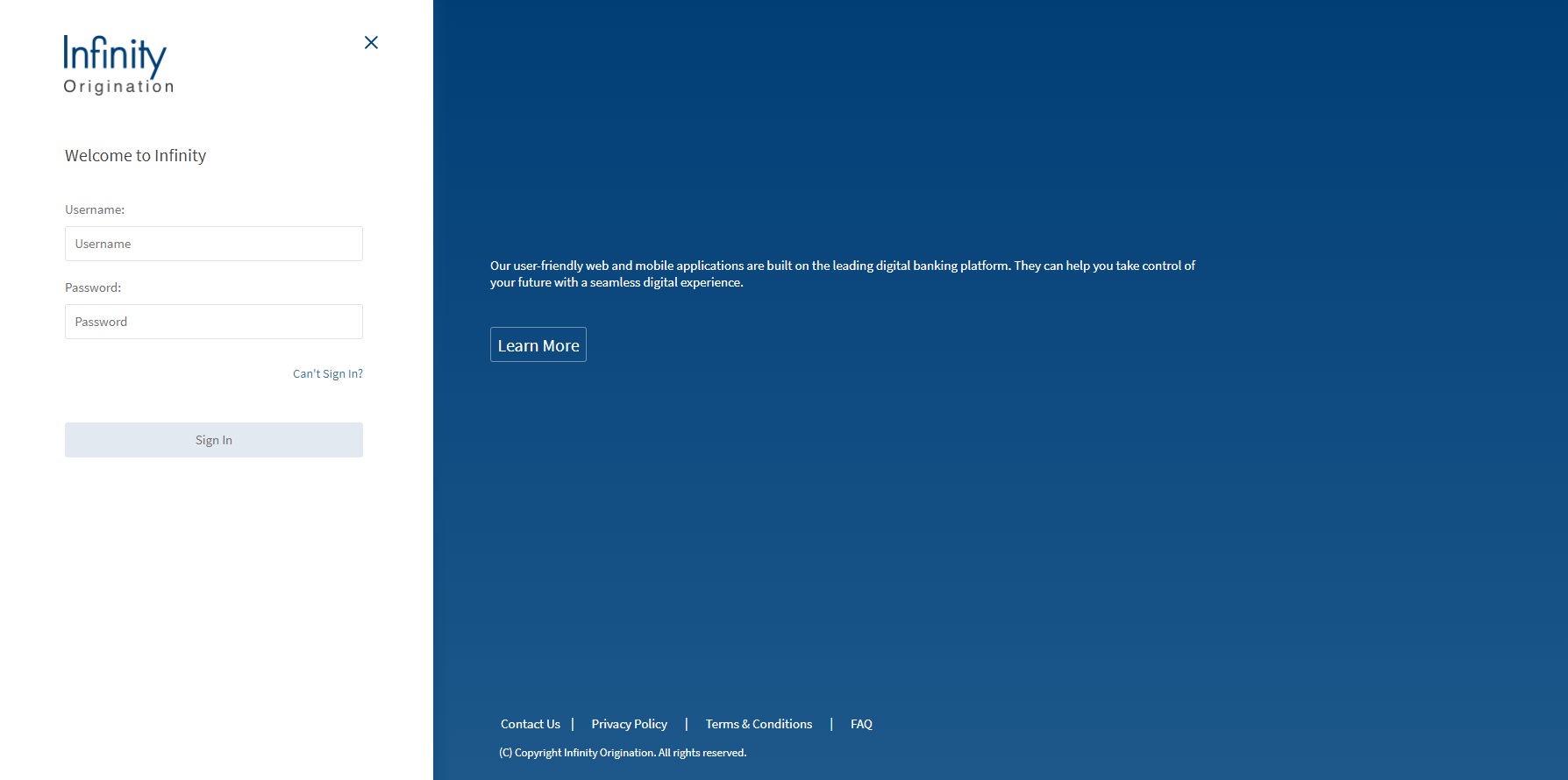
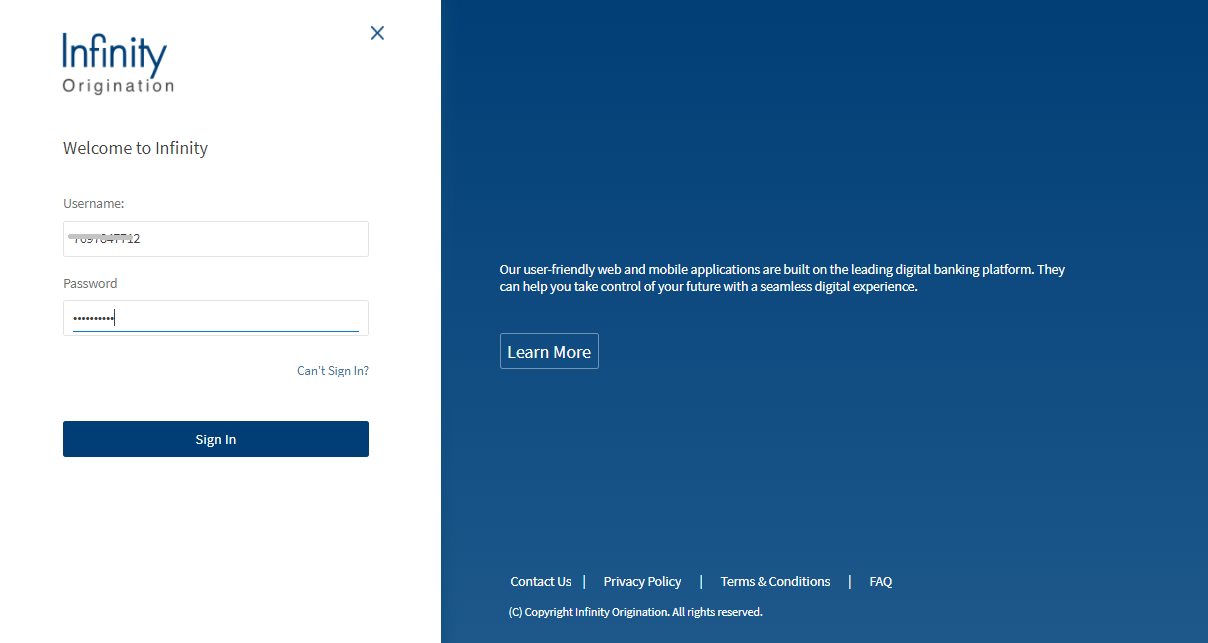
The login page appears. - Enter your login credentials, and then click Sign In. You must use the same credentials of your bank account.

NOTE: If you do not remember your password, you can click Can't Sign In? to reset your password. For more information on the procedure, click here.
- Enter your Application number and Application type. Then click Continue.

NOTE: The Application number is provided via an e-mail after you save and leave the initial application.
- Click Continue.
The app opens the last section that you visited. You can now continue updating your application.

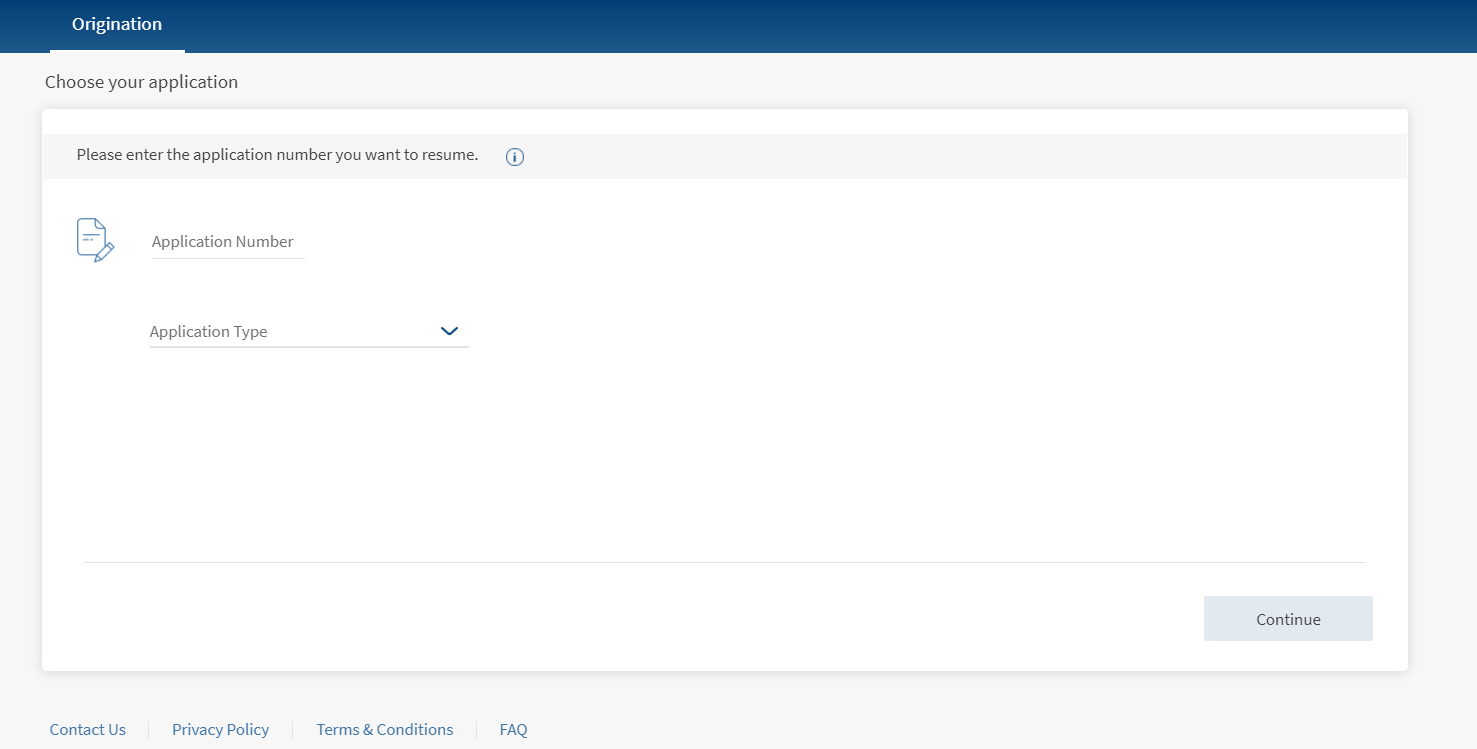
If you are not an existing customer of the bank, follow these steps.
- From the Infinity Origination dashboard, on the upper-right corner, click Resume Application.
The app opens the page where you can choose to login to the app, if you are an existing customer. - Click Resume Application.
The Resume your application section appears. - Provide the following details:
- Username
- Temporary Password
If you lost your temporary password, you can click Can't Sign In? to reset your password.
 Reset temporary password as a prospect user
- On the Login screen, Click Can't Sign In?
A Verification screen appears.
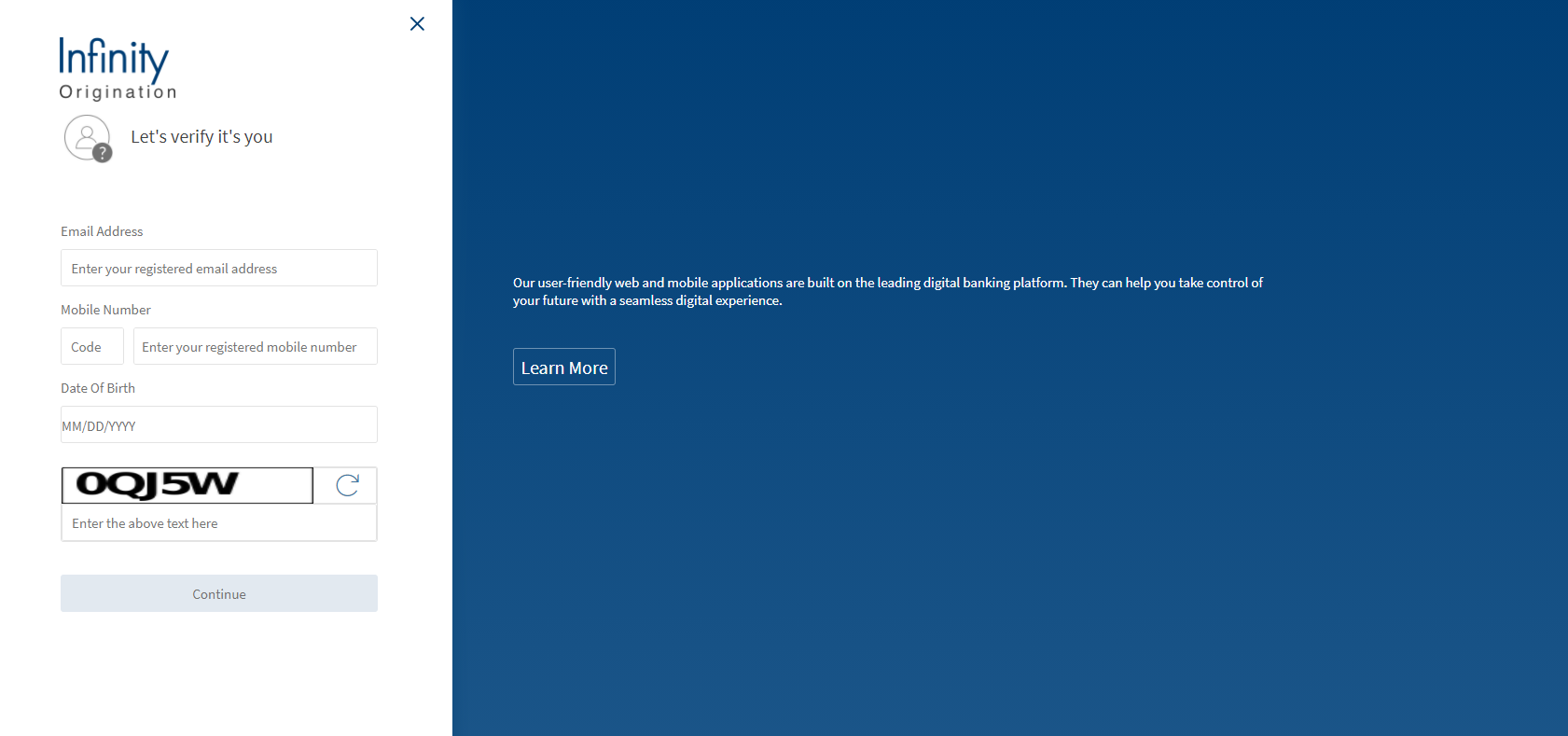
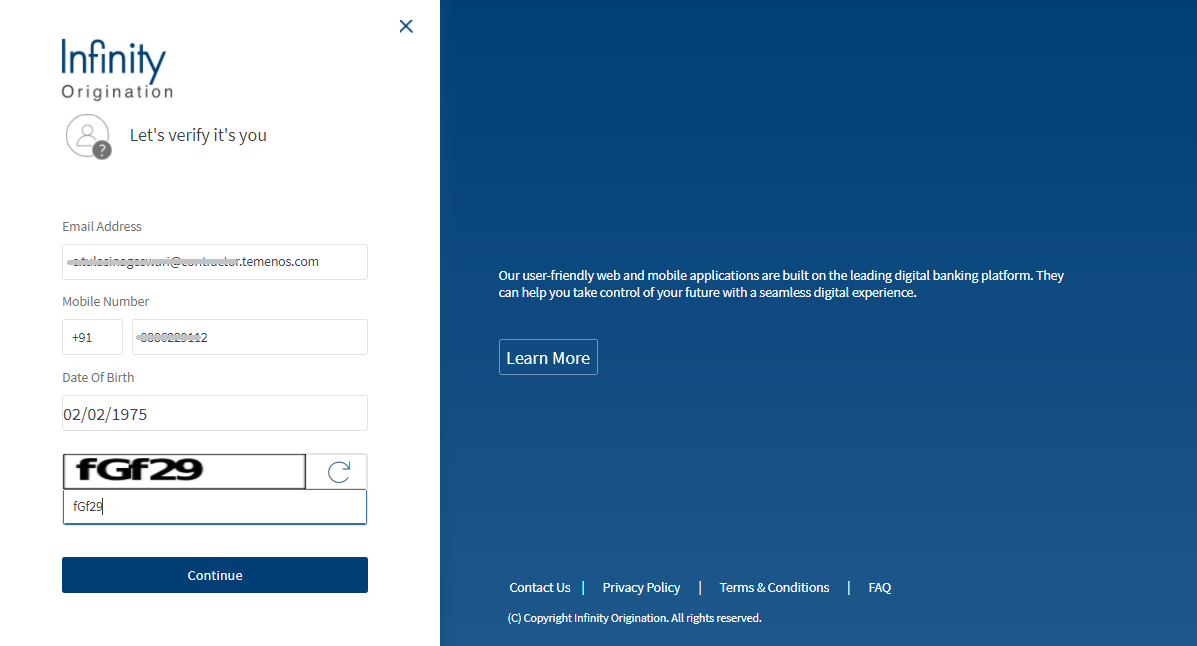
- Enter your Email Address, Mobile Number, Date of Birth, Captcha Verification Code and click Continue.

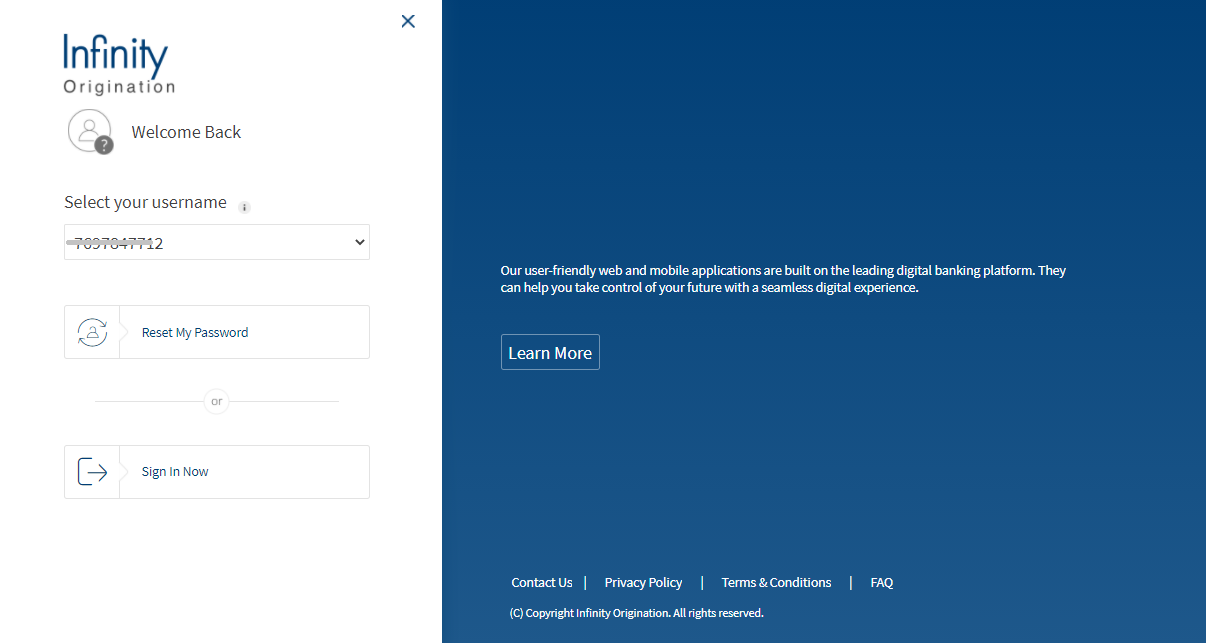
The app displays your username and provides an option to reset password.

- Click Reset My Password.
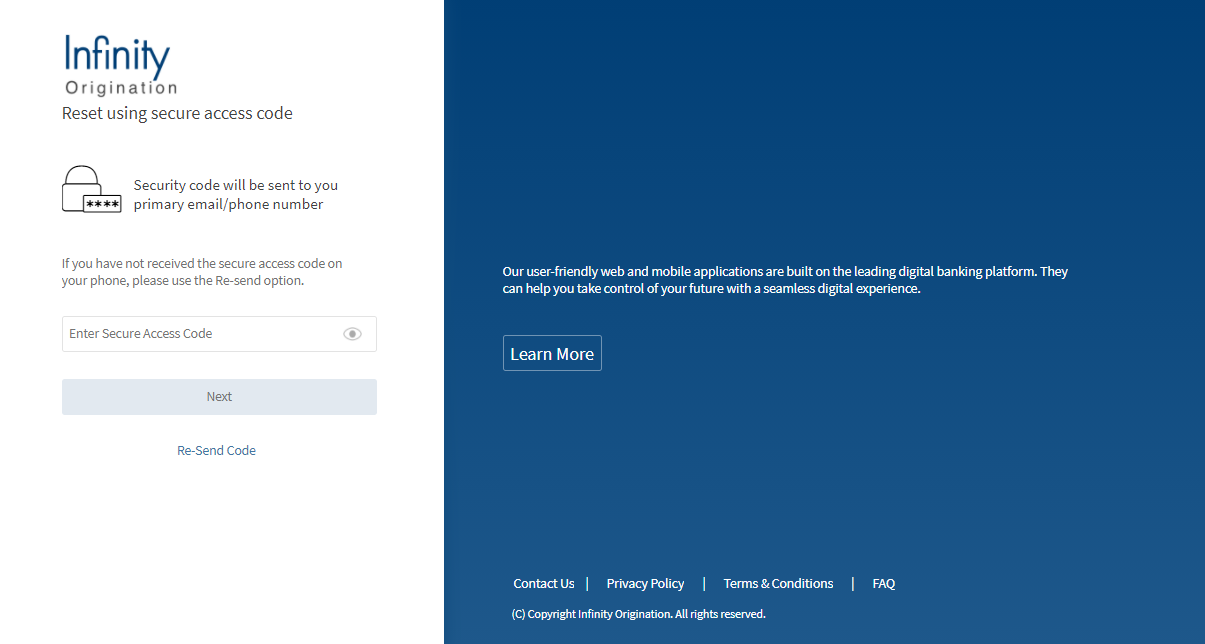
An email with the username is sent to your registered Email ID, and an OTP is sent to your registered phone number and the following OTP Verfication screen appears.

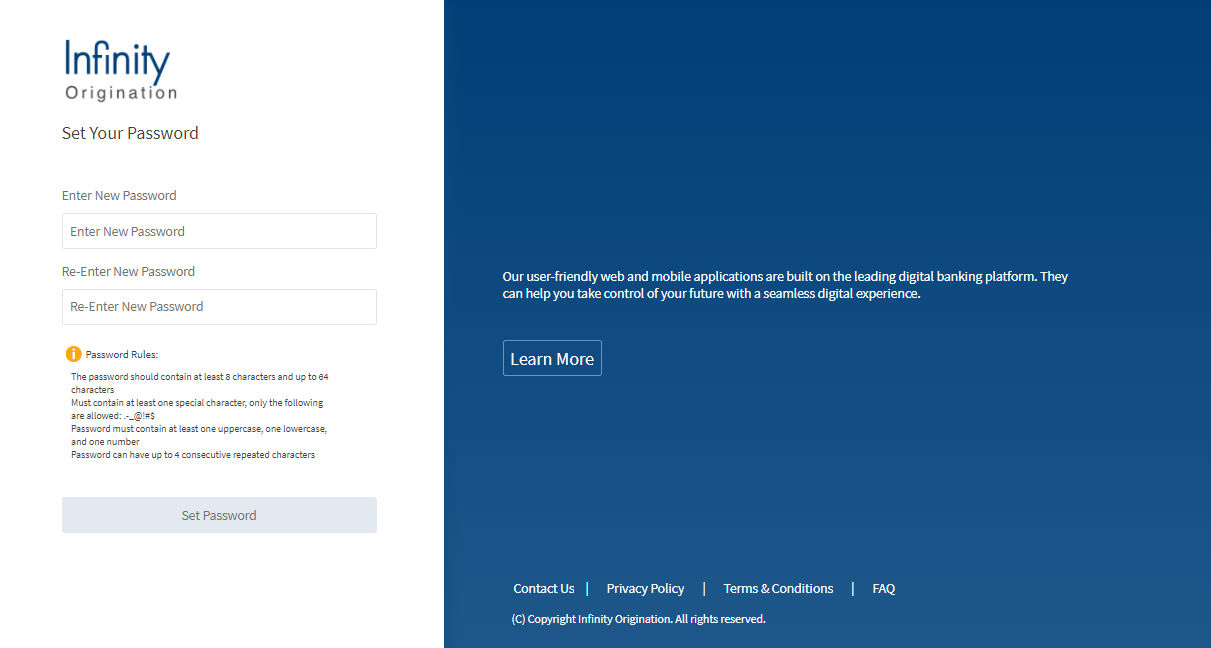
- Enter the OTP received on your phone and click Next.The Set Your Password screen appears.

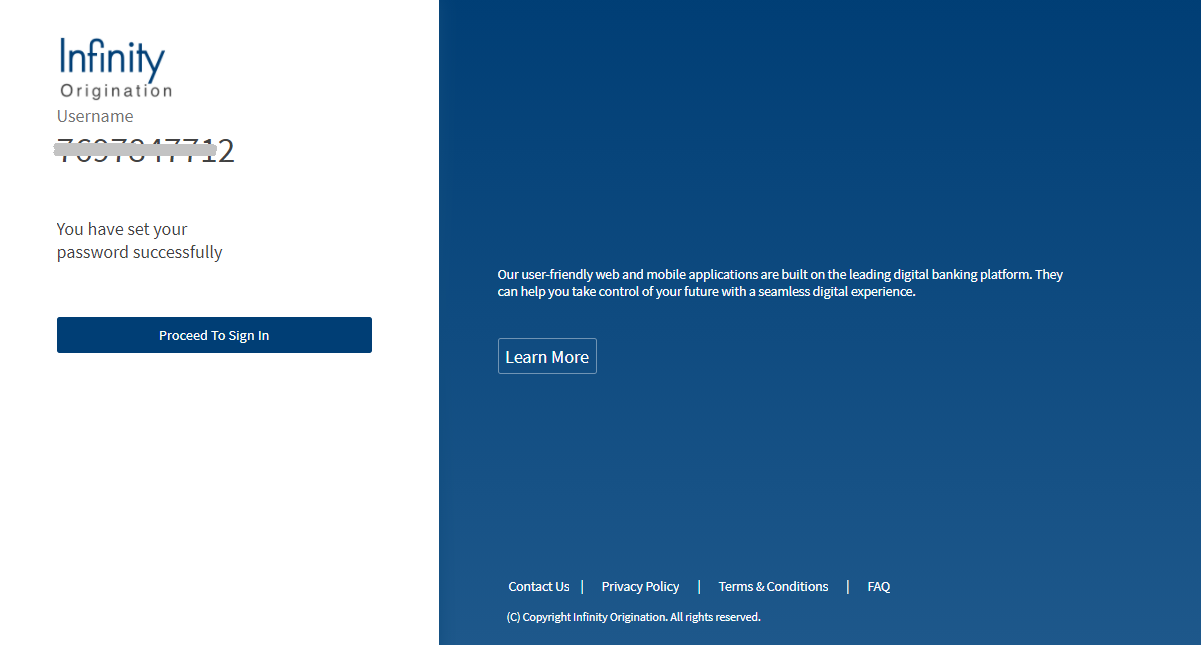
- Set your password using the displayed Password rules and then click Set Password. A confirmation screen appears that you have set your password successfully.

- Click Proceed to Sign In. You will be navigated to the login screen. Login using your newly set credentials.

If you tried signing-in from the Product dashboard, the Dashboard screen appears. Otherwise, if you tried signing-in after selecting a product, the Personal Information screen appears with the details auto-filled.
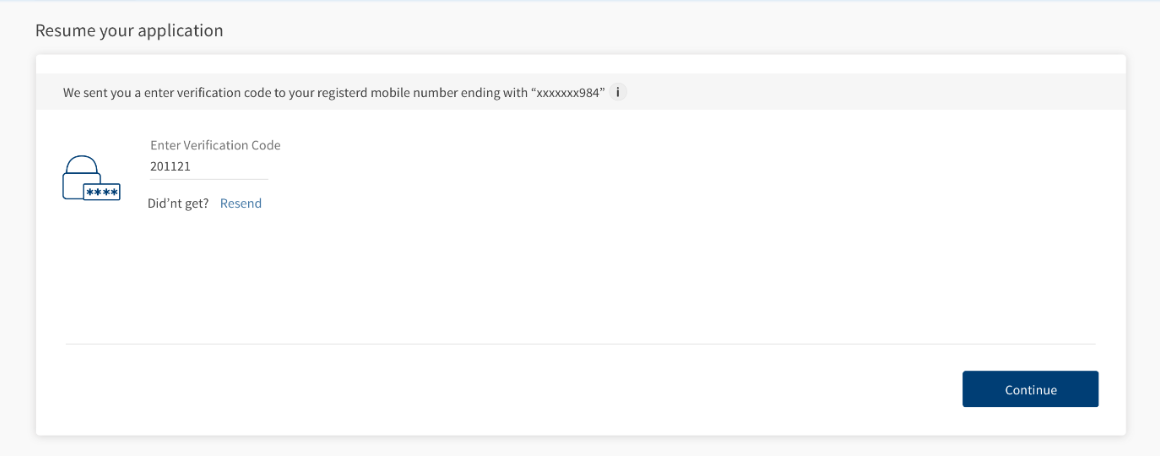
- Click Continue. The MFA-driven Verify Phone Number section appears, and you will receive an OTP on the phone number provided in your application.
- Enter the access code that you received, and then click Continue.
NOTE: If you did not receive the access code, you can request for a new code by clicking Resend.
- Enter your Application number and Application type. Then click Continue.
NOTE: The Application number is provided via an e-mail after you save and leave the initial application.
If all security validations are correct, the app opens the last section that you visited. You can now continue updating your application.
To know more about the Consent disclaimer Terms & Conditions, click here.
Components
The Resume Application section contains the following list of components:
| Component Name | Instance Name |
|---|---|
| com.nuo.ApplicationRoadMap | ApplicationRoadMap |
| com.nuo.CustomPopup | CustomPopup |
| com.dbx.DateInput | DateInput1 |
| com.nuo.EnterOTP | EnterOTP |
| com.loans.AnimatedTextBox | atbxTempPassword |
| com.loans.AnimatedTextBox | atxtApplicationID |
| com.loans.AnimatedTextBox | atxtPhoneNumber |
| com.dbx.bannerError | bannerError |
| com.dbx.customHeaderNUOV2 | customHeaderNUOV2 |
| com.nuo.customfooter | customfooter |
| com.nuo.customheader | customheader |
| com.dbx.filterDropdown | filterDropdown |
| com.dbx.infoTooltip | infoTooltip |
| com.nuo.loading | loading |
| com.dbx.navButtons | navButtons |
| com.dbx.popup | popup |
| com.dbx.usefulInfo | usefulInfo |
| com.loans.AnimatedTextBox | atbxReEnterTempPassword |
Experience APIs
| API | Description |
|---|---|
| sendResumeMail | When you close the app, this API sends an email to your registered email ID. This email contains an application ID and a URL to resume your application. |
| resume | This API retrieves the details of a party. |
| decryptresumeLink | This API retrieves and de-crypts the URL for resuming the application. |
| requestMFAOtp | This API sends an OTP to the registered phone number. |
| verifyMFAOtp | This API validates the OTP you entered. |
Configurations
The system administrator will have the capability to configure this module from the Spotlight app. For more information about configurations related to resuming an application, click here.
Extensibility
By using the Extensibility feature, you can customize the modules based on your requirements. For more information, refer to Extensibility.
In this topic
